Explore how video playback experiences differ between PSVR2 on PC and PS5, focusing on compatibility, software requirements, and playback options.
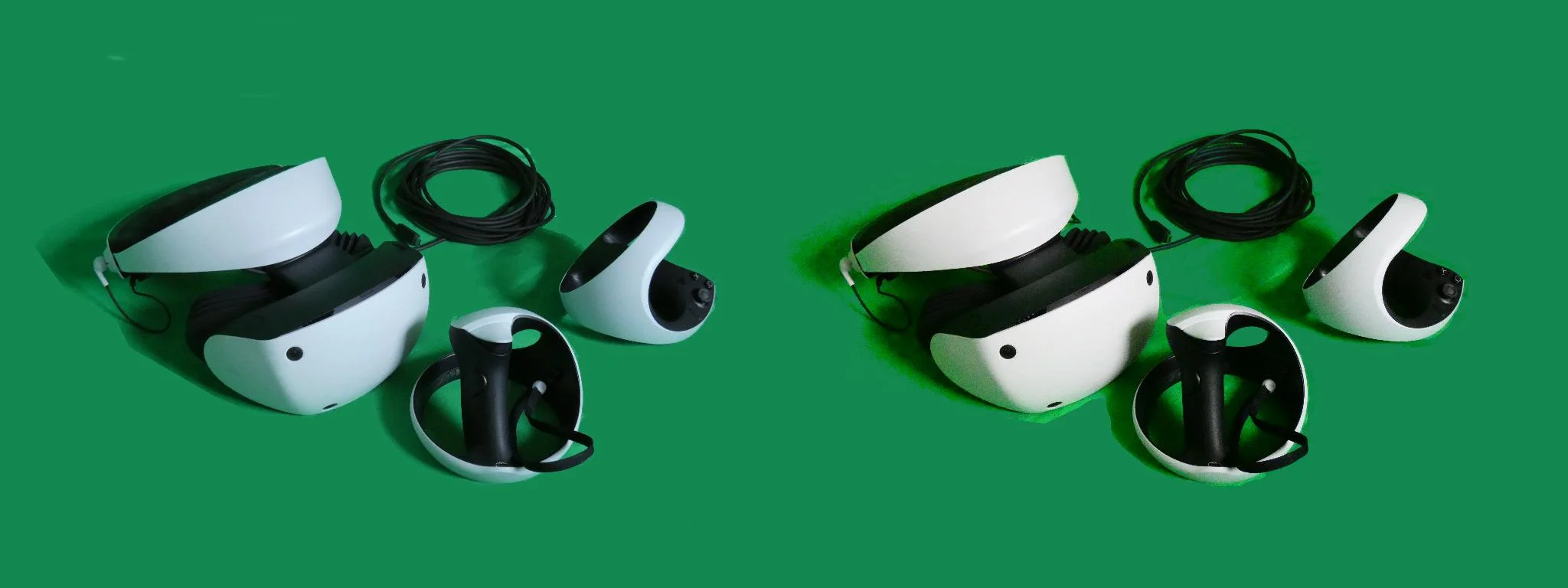
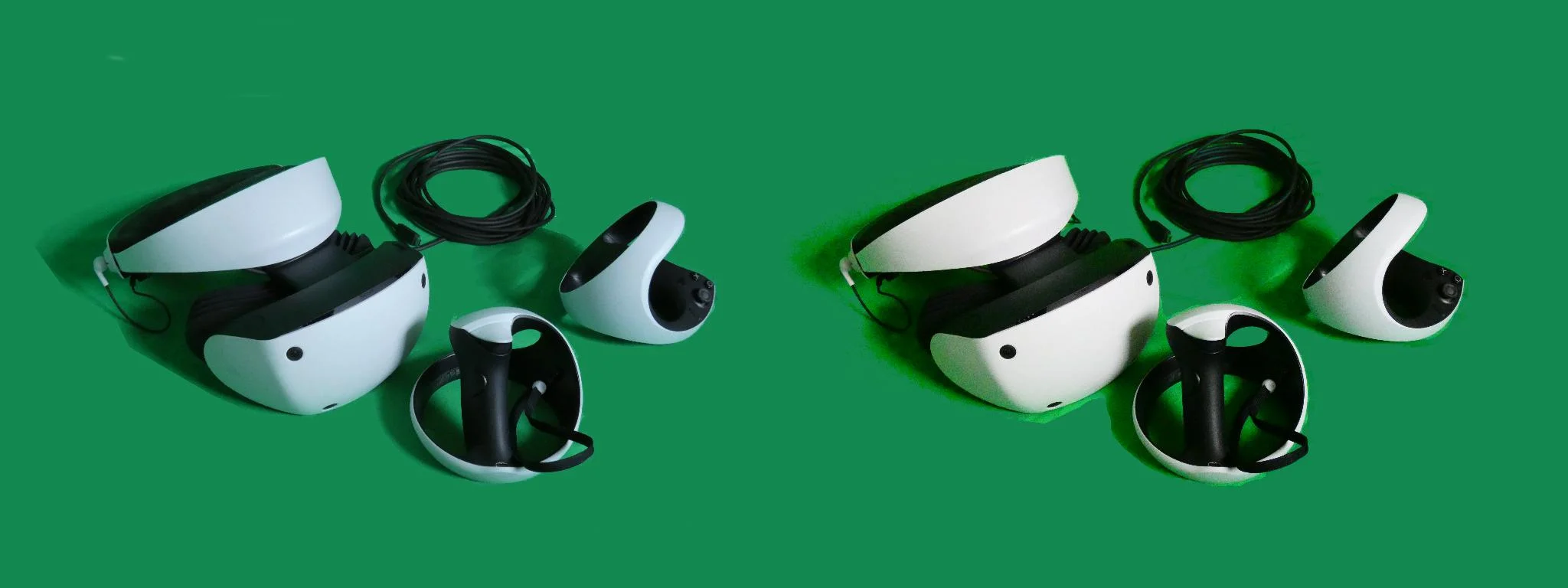
Credit: C.Suthorn (https://commons.wikimedia.org/wiki/User:C.Suthorn), CC BY-SA 4.0 (https://creativecommons.org/licenses/by-sa/4.0/), Wikimedia Commons (https://commons.wikimedia.org/wiki/File:PSVR2.png)
When transitioning a PSVR2 headset from a PlayStation 5 to a PC, users encounter significant differences in software and compatibility. It's crucial to understand that just because a headset is recognized by the host system doesn’t mean all video services will perform flawlessly. For specific guidance, resources like Brain Dance VR's VR playback guide can help clarify what you'll need to ensure smooth operation. Begin by examining the full playback pathway: the device, headset connection, media player, and file format.
Connecting the Headset to a PC
According to Sony’s official guide, setting up the PSVR2 for PC requires a dedicated adapter and a DisplayPort 1.4 cable. It's essential to have a compatible Windows PC with the necessary outputs and to ensure the correct USB connection. Note that USB-C connections carrying DisplayPort aren’t supported by this adapter. Before purchasing any additional accessories, double-check the ports available on your machine.
You’ll also need to install specific software: Steam, SteamVR, and the PSVR2 application. These components create the necessary environment for the headset on a PC, but managing media and playback formats requires further investigation. Simply installing the headset software won’t automatically enable immersive experiences across all platforms.
Understanding Your Viewing Preferences

The type of video you intend to watch is a critical factor in determining your setup. Watching a traditional movie in a virtual theater differs notably from experiencing a panoramic video. The former provides a rectangular image in a 3D environment, while the latter requires the player to project the image fully around the viewer.
Additionally, stereoscopic displays, which deliver different visuals to each eye, require careful handling. If a media player incorrectly shows both views together, it could mislead you into thinking there’s a file error. Thus, confirming your viewing mode in advance is vital to avoid unnecessary troubleshooting.
Before diving into comparisons between PC and PS5, articulate your usage intent clearly. Be specific about the types of media you want to use, particularly if you're aiming to view unique local files in a certain media player.
Application Compatibility Check
For PS5 users, it's essential first to establish that the intended application is available on the console and supports the PSVR2 headset along with your desired playback mode. Avoid making any assumptions about general browser capabilities or equivalencies between desktop and console applications; both account access and headset support can differ significantly.
On the PC side, it’s crucial to scrutinize the media player's current headset compatibility and media types. Understand whether your playback path involves a standalone application, a browser session, or a virtual desktop environment—what looks alike in promotional materials can perform differently in practice.
Moreover, the source of your content matters. Different streaming services might have distinct protocols for playback, downloads, or streaming, and availability can vary across subscription types. Therefore, rely on the provider's recommended playback methods rather than assuming desktop functionality translates to immersive playback.
Short Testing Sessions
Once everything is set up, start with a brief trial using a known-compatible media sample. Ensure the visual orientation and audio output are correct, and familiarize yourself with the controls for pausing and exiting. If you need to re-center your view, use the application's built-in options to calibrate your experience before making any assumptions about issues.
If you encounter problems, it’s beneficial to document them carefully. Issues such as undetected headsets, distorted images, or repeated buffering all require different troubleshooting approaches. Modify one setting at a time and test frequently to pinpoint what adjustments yield results.
Determining the Optimal Playback Solution
Ultimately, using PSVR2 on a PC can be advantageous when you’re accessing applications specifically tailored for that environment. Conversely, the PS5 remains a solid choice for applications expressly designed for its ecosystem. The key takeaway is to focus on the experiences you can reliably achieve with your existing equipment.
Before making any purchases, clearly identify the application you intend to use, ensure your connections are solid, and run through supported media samples. Following this pathway offers a practical approach to comparing your options without falsely attributing software compatibility to a headset adapter.
The post PSVR2 on PC vs PS5: What Changes for VR Video Playback? appeared first on PlayStation Universe.



Discussion
Sign in to join the discussion.